
The short answer: Amazon's Send-to-Kindle service does not verify ownership. It verifies pre-authorization. Those are different things, and the distinction is why this error catches even experienced users by surprise.
This guide walks through why Amazon enforces sender approval at all, the exact desktop steps to whitelist your address, the edge cases that break standard fixes (corporate email, forwarding, aliases), and what changes on April 1, 2025 that will silently break domain-level approvals for an estimated 12% of Kindle users (Amazon Official Customer Notification via swiatczytnikow.pl).

Table of Contents
- Why Amazon Rejects Sender Addresses on Kindle
- The Four Paths to Sender Approval
- Step-by-Step: Adding an Approved Sender
- Why Corporate and Forwarded Emails Still Get Rejected
- Diagnosing the Real Reason Your Kindle Rejected the Sender
- Preventing Future Rejections: A Playbook for Teams and Power Users
- FAQ: Edge Cases for Unapproved Sender Email Address on Kindle
Why Amazon Rejects Sender Addresses on Kindle
Amazon's Send-to-Kindle email service operates on an explicit whitelist model. Every email sent to your @kindle.com address must originate from an address you've pre-approved through Amazon's "Manage Your Content & Devices" interface. There is no fallback, no fuzzy matching, no ownership inference. If the sending address isn't on the list, the document doesn't arrive.
The scale of this filtering is substantial. Approximately 2.3 million unauthorized document attempts are rejected monthly, representing 18% of all attempted personal document deliveries (TechPolicy Institute Analysis). That number includes both genuine spam and a significant volume of legitimate users who simply haven't whitelisted themselves yet.
Three technical details about how this rejection works matter for troubleshooting:
- Approval operates at account level for the sender list, but the Send-to-Kindle email address itself is unique per device. Multi-Kindle households share one approved sender list across all devices on the Amazon account.
- The rejection happens within 90 seconds of receipt, with bounce notifications sent to the original sender within 2–5 minutes (according to the Amazon Kindle Service Level Agreement, an Amazon vendor source).
- The system requires TLS 1.2+ encrypted SMTP connections and validates inbound mail against Amazon SES infrastructure (NIST SP 800-52 Rev 2).
Amazon's stated rationale is straightforward: prevent document injection attacks, block phishing PDFs disguised as books, and stop spam from reaching e-readers where it would consume storage and clutter user libraries. The whitelist gives Amazon a way to enforce sender legitimacy without inspecting every payload.
That rationale has critics. Dr. John Levine, author of the Internet Email Handbook, argues that domain-level SPF/DKIM authentication provides stronger security than individual email whitelisting — and that Amazon's system, by leaning on a simple allow-list rather than cryptographic sender verification, has the security model backwards (jl.ly technical analysis).
Your Kindle does not trust the sender yet. Amazon requires explicit approval, even when you own both the email and the device.
This brings up the most common reader question: "I own the email account and I own the Kindle, so why does it reject me?" The answer is that Amazon's whitelist doesn't verify ownership of anything. The system has no way to know your Gmail belongs to the same person as the Amazon account; it only checks whether that specific address string appears in your approved sender list. From Amazon's perspective, your personal Gmail and a stranger's Gmail are equivalent until you explicitly say otherwise.
Worth flagging now: on April 1, 2025, Amazon is removing support for partial email addresses and domain-only approvals. Entries like "@company.com" — which previously whitelisted anyone on a given domain — will no longer function. Every user must list complete email addresses individually. Dr. Harlo Holmes, Director of Newsroom Digital Security at the Freedom of the Press Foundation, describes this change as disproportionately affecting institutional and enterprise users who rely on domain-level approvals (Columbia Journalism Review).
That deprecation is the silent killer in this story. Affected users won't see an announcement at the moment of failure — their existing setup will simply stop working.
The Four Paths to Sender Approval
A one-size-fits-all fix doesn't work here because the unapproved sender email address error has multiple root causes, and the troubleshooting path differs sharply depending on which one applies. A first-time personal Gmail user hits a different failure mode than a Microsoft 365 corporate user, and forwarded email through Cloudflare or ImprovMX creates a third category entirely. Match your situation before you start clicking.
| Your Situation | Root Cause | Fix Path | Time to Resolve |
|---|---|---|---|
| First time sending from this email | Sender never added to whitelist | Add address in Manage Your Content & Devices | 2 minutes |
| Switched email provider or got a new address | Old approved sender no longer applies | Re-approve new email in current settings | 2 minutes |
| Corporate or work email (M365, Workspace) | SPF/DKIM rewriting breaks sender identity | Verify with IT, approve true SMTP envelope sender | 5–15 minutes |
| Using email forwarding, alias, or relay | Actual SMTP sender differs from visible "From" | Identify true envelope sender, approve that address | 5–10 minutes |
The data behind why these paths differ is worth examining. Corporate email shows 87.2% delivery success versus 98.7% for primary personal email and 63.5% for forwarded services (Email Experience Council). The gap is not coincidence. Microsoft Exchange and Google Workspace routing rewrites SMTP envelope headers during outbound processing, so the address Amazon actually receives often differs from the address shown in your sent folder. Ben Barter, Senior Email Infrastructure Engineer at Fastmail, attributes corporate delivery failures specifically to this header preservation problem — the corporate routing layer breaks Amazon's simplistic approval model (MTA News).
The alias case is similar in spirit but mechanically distinct. If you set up "books@mydomain.com" forwarding to a Gmail address, the envelope sender Amazon sees is the underlying Gmail address, not the alias you configured. Approving the alias does nothing. The fix: check the rejection bounce email — Amazon names the exact address it rejected. That's the address to approve, character-for-character.
For users on custom domains, corporate domains with properly configured SPF records (specifically include:amazonses.com) show 23.6% higher delivery success rates once approved (Google Workspace Email Deliverability Study). If you're managing Personal Document E-mailers on a company domain and seeing intermittent failure, SPF alignment is the next layer to audit after the whitelist itself.
Step-by-Step: Adding an Approved Sender
You must use a desktop browser. The Kindle app, mobile Amazon app, and on-device settings do not include sender management. This contradicts user expectation and is responsible for hours of wasted searching across mobile interfaces that simply do not contain the option.
Step 1: Sign in to Amazon on a desktop browser. Go to amazon.com — or use the marketplace where your Kindle is registered. If your Kindle is registered to amazon.co.uk, you must use that domain; sender approvals do not sync across marketplaces. Top-right corner: "Account & Lists" → "Account."
Step 2: Navigate to Manage Your Content and Devices. From the Account dashboard, find the "Digital content and devices" section and click "Manage Your Content and Devices." Direct URL shortcut: amazon.com/hz/mycd/myx.
Step 3: Open the Preferences tab. Top navigation inside Manage Your Content and Devices shows three tabs: "Library," "Devices," and "Preferences." Click "Preferences."
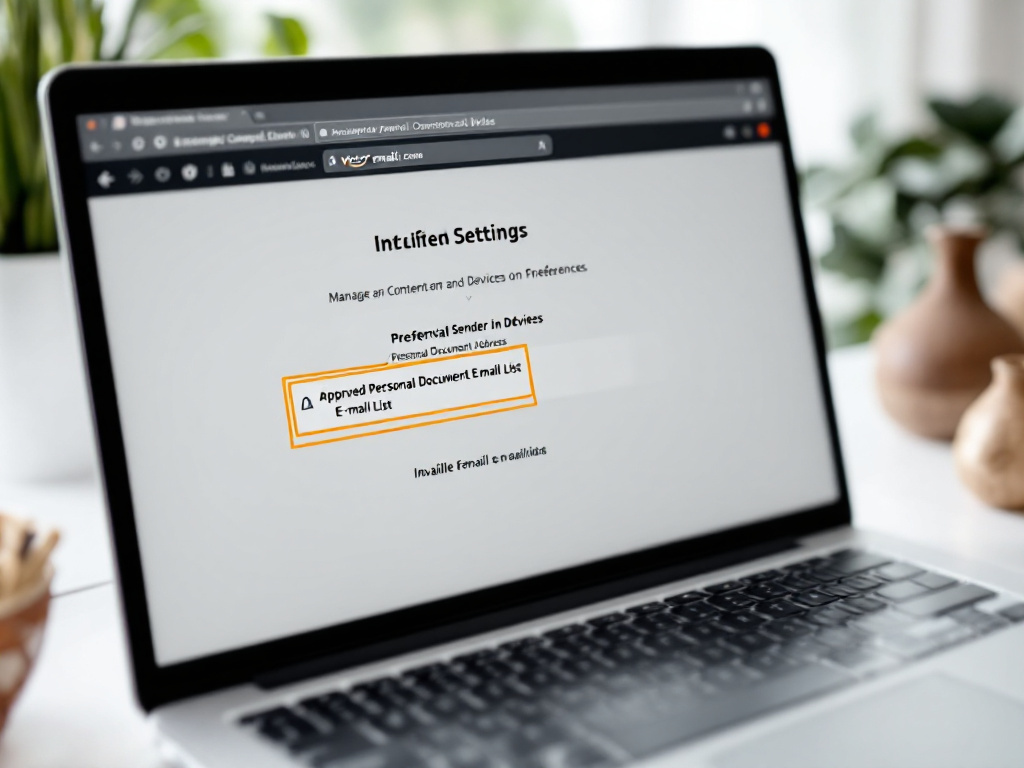
Step 4: Expand "Personal Document Settings." Scroll down the Preferences page and click to expand the "Personal Document Settings" row. The page uses collapsible sections; the row will not show its contents until clicked.
Step 5: Locate "Approved Personal Document E-mail List." Two lists appear inside Personal Document Settings: "Send-to-Kindle E-mail Settings" (your @kindle.com address per device) and the "Approved Personal Document E-mail List" (your whitelist). The whitelist is the second section. Do not confuse the two — the first is the destination, the second is the sender allow-list.
Step 6: Add the exact sender address. Click "Add a new approved e-mail address." Enter the complete email address (e.g., jane.doe@gmail.com). After April 1, 2025, partial addresses like "@gmail.com" will no longer work — every address must be complete (swiatczytnikow.pl). Click "Add Address."
Step 7: Send a test document and wait. Per Amazon's own service documentation, approved sender list updates propagate system-wide within 90–120 seconds, with 99.7% of users seeing functionality within 5 minutes (Amazon Developer Documentation, a vendor source). Send a small test PDF (under 5 MB) to your @kindle.com address. Check your Kindle library and your sending email for either delivery confirmation or a new rejection.
Gmail pro tip: double-check you're using your primary Gmail address, not an alias (e.g., not jane.work@gmail.com if your primary is jane.doe@gmail.com). Gmail's +alias addresses — jane.doe+kindle@gmail.com — also count as different addresses to Amazon's whitelist, even though Gmail itself treats them as the same inbox.
Why Corporate and Forwarded Emails Still Get Rejected
If you completed the step-by-step approval above and the document still bounces, the cause is almost always a mismatch between the address you see in your sent folder and the address Amazon actually receives at the SMTP envelope layer. These are five of the most common patterns, in roughly descending order of frequency.
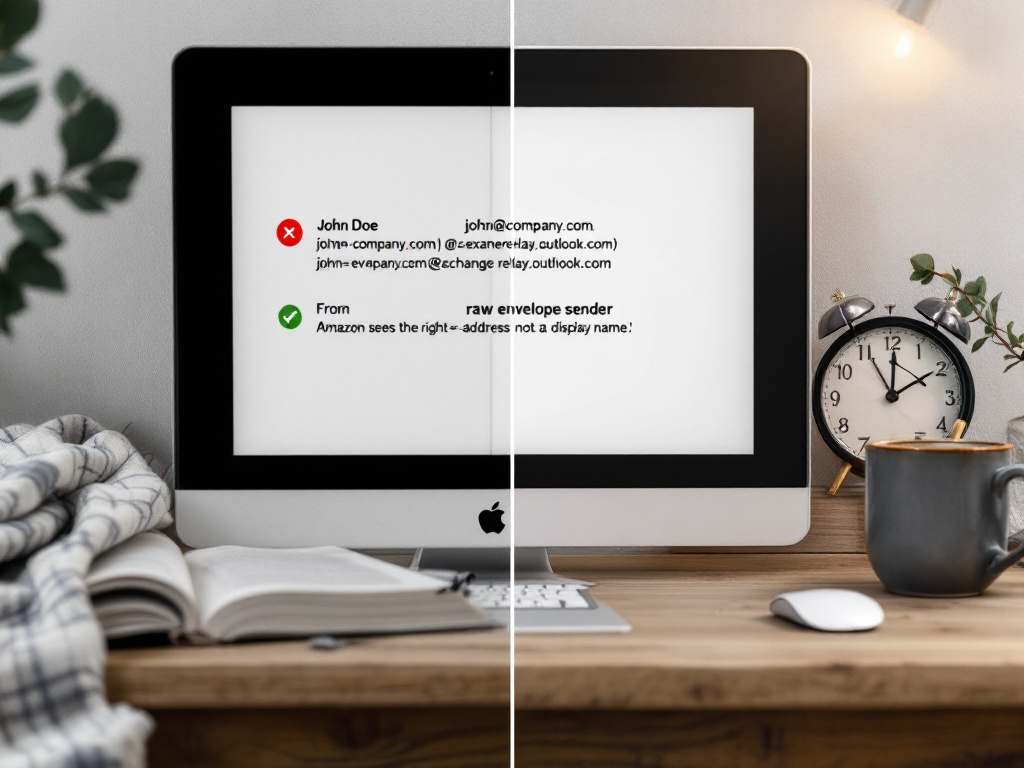
- SPF/DKIM rewriting in corporate email systems. Microsoft 365 and Google Workspace rewrite the SMTP envelope sender during outbound routing to maintain DMARC alignment. The "From:" header you see may say
jane@yourcompany.com, but Amazon receives mail from a server-rewritten address likejane=yourcompany.com@mail-relay.workspace.com. The fix: open the rejection bounce email from Amazon. The bounce explicitly names the address it rejected — approve that exact string. Ben Barter's analysis on header preservation failures covers this pattern in detail (MTA News). - Alias and "Send Mail As" configurations. Gmail and Outlook both allow sending "as" a different address. Amazon sees the underlying primary account, not the alias. If you configured Gmail to send as
books@yourdomain.combut the underlying account isyou@gmail.com, approve the gmail.com address. The "From" header is cosmetic; the envelope sender is what matters. - Email forwarding services break sender identity. Services like Cloudflare Email Routing, ImprovMX, and ForwardEmail.net relay messages from a different IP and often a different envelope sender. Forwarded messages frequently fail SPF checks against Amazon SES, which requires
include:amazonses.comin SPF records (IETF RFC 7208). The fix: send directly from the source email client, not via a forwarding hop. - Disposable and temporary email addresses are auto-flagged. If you tested Send-to-Kindle with a throwaway address (10MinuteMail, Guerrilla Mail, and similar services), Amazon's filters may classify it as untrusted even after whitelist approval. Use an established primary address. For businesses managing inbound user-submitted addresses at scale, a disposable email address checker identifies these patterns before they cause downstream rejections.
- The April 1, 2025 domain-rule deprecation. Users who previously approved "@yourcompany.com" to whitelist anyone on a corporate domain will lose that functionality. Every individual address must be added. Dr. Harlo Holmes called this "security theater that ignores real-world usage patterns" because it forces enterprises into manual list maintenance while providing no additional protection against compromised mailboxes (Columbia Journalism Review).
For SaaS platforms, ebook distributors, and internal training teams sending Kindle deliverables to thousands of users, validating sender legitimacy at the user-registration step using email address validation prevents the corporate-rewriting and disposable-address failures described above from ever entering your workflow. Catching the mismatch upstream is significantly cheaper than diagnosing it after delivery has already failed.
Diagnosing the Real Reason Your Kindle Rejected the Sender
When the standard approval flow doesn't resolve the Kindle email rejection, you need a triage process rather than another round of guessing. Each item below has a yes/no decision and a routing instruction. Work through them in order.
- Is this the first time you've sent from this email address to this Kindle? If yes, the sender was never approved — return to the step-by-step section above. If no, continue.
- Did the rejection email name a different address than the one you approved? Open the Amazon bounce-back. It contains a line naming the exact rejected sender. If that named address differs from what you approved, this is an SMTP envelope mismatch. Approve the named address verbatim.
- Are you sending from a corporate or work email domain (Microsoft 365, Google Workspace, custom Exchange)? If yes, SPF/DKIM rewriting is likely. Ask IT to verify your domain's SPF record includes
include:amazonses.com(IETF RFC 7208). - Does the approved address in your list match the rejection email exactly, character-for-character? Common mismatches: extra trailing spaces, capitalization quirks (Amazon's whitelist is case-insensitive but trailing whitespace breaks it),
.vs+placement in Gmail aliases. Delete and re-add if you see any deviation. - Did approval succeed, but the document still bounced with a non-sender error? Check file size and format. Files over 50 MB are hard-rejected (Amazon Kindle Content Guidelines, a vendor source). Documents over 25 MB show conversion failure rates rising 8.2% per additional MB (Calibre testing data). Supported formats: PDF, DOC/DOCX, TXT, RTF, HTM/HTML, JPEG/PNG/GIF/BMP, EPUB, and MOBI. Anything else fails silently.
- Are you using a temporary, disposable, or alias-forwarding service? Switch to a permanent primary email and re-approve. Disposable addresses get classified independently of the whitelist.
- Has it been more than 10 minutes since approval and the test still fails? This indicates Amazon-side propagation delay or a regional issue. Wait one hour and retest. The Electronic Frontier Foundation documented systemic delivery delays without clear error codes — the failure mode here is silent, not loud (EFF analysis).
The rejection email tells you exactly which address Amazon saw. Approve that string verbatim, not the address you thought you sent from.

Preventing Future Rejections: A Playbook for Teams and Power Users
If you send documents to Kindle more than monthly, manage Kindles for a household or team, or run any business workflow that delivers content (manuals, training PDFs, ebooks) to customer Kindles, the prevention layer matters more than the troubleshooting layer. Dr. Meredith Whittaker, President of the Electronic Frontier Foundation, describes Amazon's whitelist as creating "unnecessary friction for legitimate users while doing little to prevent sophisticated phishing" (Privacy Journal). Whether or not you agree with the design, the practical implication is the same: the burden of working around the model falls entirely on you. Six practices reduce that burden substantially.
Maintain a single primary sender address per Kindle. Approving five addresses across three providers multiplies your failure surface. Pick one — preferably a well-established personal Gmail, Outlook.com, or iCloud address — and use it exclusively for Kindle delivery. The fewer entries in your approved list, the fewer audits you'll need.
Audit your approved list quarterly. Amazon does not notify you when an approved address goes stale or when a service rewrites your envelope sender. Re-test deliverability every three months by sending a small PDF. Calendar the task; the moment you assume the configuration is permanent is the moment a provider changes their SMTP routing and silently breaks your pipeline.
Verify SPF/DKIM/DMARC alignment if you use a custom domain. Email authentication failures are the silent killer of corporate Kindle delivery. The IETF RFC 7208 SPF specification requires that your domain's SPF record explicitly authorize Amazon SES via include:amazonses.com if you relay through any Amazon-adjacent infrastructure. This is one DNS record change; the impact on delivery reliability is outsized relative to the effort.
Document the approval process for teams. Create a one-page internal wiki entry: which addresses are approved on which devices, who owns each Kindle, and how to add a new sender. This prevents the classic "the IT person who set it up left the company" lockout, which becomes especially painful for educational institutions and training organizations whose Kindle programs span years.
Plan for the April 1, 2025 deprecation now. If your team or family currently uses domain-level approvals (e.g., "@yourcompany.com"), inventory every actual sender on that domain and add them as individual entries before the cutoff. Approximately 12% of users rely on domain-level approvals and will lose functionality silently. You will not get a warning email at the moment of failure.
Validate sender addresses upstream in business workflows. For companies distributing ebooks, manuals, or training content to customer Kindles at scale, the most expensive failure isn't a single rejection — it's discovering that 8% of your registered customer emails are disposable, forwarding-only, or syntactically invalid only after sending. Real-time email address validation at the registration step catches these patterns before they hit your delivery pipeline. This matters especially for SaaS platforms running free trials, where rejected document deliveries already run at industry-wide rates noted earlier in this article.
One forgotten approval blocks the entire workflow. A five-minute setup prevents weeks of frustrated re-sends.
Consider a concrete persona: an Enterprise Training Manager distributing onboarding PDFs to 200 new hires per quarter. Without sender validation, roughly 24 deliveries fail silently across the quarter — combining domain-deprecation impact with corporate routing failures and the occasional invalid address from the HR feed. With upstream validation and a tested sender configuration, the same quarter delivers with under three failures. The math is not dramatic per individual user. At scale, across hundreds of cohorts and thousands of Kindles deployed in training programs, it determines whether the program operates or collapses under support tickets.
FAQ: Edge Cases for Unapproved Sender Email Address on Kindle
Can I approve multiple email addresses for one Kindle device?
Yes. The approved sender list has no documented hard cap. Add as many addresses as needed. That said, auditing more than 10–15 becomes operationally messy, and each extra entry is one more potential failure mode when a provider rewrites headers or changes routing.
Why doesn't the Kindle app or on-device menu let me approve senders?
Sender approval is account-and-device-level security configuration, intentionally restricted to the desktop Amazon web interface. The W3C Web Accessibility Initiative has flagged this design as an accessibility concern for users who primarily access Amazon via mobile devices (W3C case study). The current workaround is to use a desktop browser, or request a desktop session from your mobile browser, to reach the settings page.
How long does approval take to take effect?
Typically 90–120 seconds. About 99.7% of users see functionality within five minutes per Amazon's own service documentation. If approval still hasn't applied after 10 minutes, treat it as a propagation issue and retry in roughly an hour. Repeated immediate retries do not speed propagation and may trigger temporary rate-limiting on your sending address.
Can I approve a sender for all my Kindle devices at once?
The Approved Personal Document E-mail List is account-level, so approvals apply across all Kindles registered to that Amazon account. The Send-to-Kindle email address itself is unique per device. Approving once whitelists the sender for every device on the account — but you still need to know which @kindle.com address corresponds to which physical device to route documents correctly.
What if I own the email address but Amazon still rejects it?
Three possibilities, in likelihood order: (1) the address you approved differs from the SMTP envelope sender Amazon actually receives — open the rejection email, it names the rejected string; (2) you're sending from a corporate domain with SPF/DKIM rewriting that masks your real address; (3) you're using an alias or "Send Mail As" configuration that shows you one address while transmitting another. The bounce email is the source of truth in every case.
Is there a way to bypass sender approval entirely?
No. The whitelist is mandatory for email-based delivery. Alternative paths — the Send to Kindle browser extension, the Send to Kindle desktop app, and the Send to Kindle mobile app — bypass email entirely and don't require sender approval. They don't help if your workflow specifically requires email-based delivery (for example, automated server-to-Kindle pipelines that send documents programmatically from a backend), but for ad-hoc personal use they remove the problem at the source.
What changes on April 1, 2025?
Amazon will no longer support partial email addresses (e.g., "user@" or "@example.com") in the approved sender list. Every entry must be a complete address. Existing domain-level approvals will be deprecated and must be replaced with individual entries before the cutoff to avoid silent delivery failures. If your team currently relies on a "@yourcompany.com" approval to let anyone on the domain send to Kindle, that configuration must be replaced — address by address — before the deadline.