
How to Build a Clean Email List in Outlook: Validation and Abuse Prevention
A marketing operator imports 3,000 addresses into an Outlook Contact Group on Monday morning, schedules a campaign for Tuesday, and by Wednesday afternoon watches an 8% bounce rate materialize on the first send. Gmail's complaint filters trip. The sending domain gets flagged. Two days of incident response follow — and the addresses were technically "in Outlook," cleanly grouped, neatly named.
The problem isn't the campaign. The problem is that when you create email list in Outlook, you are organizing addresses, not qualifying them. Microsoft's own documentation confirms that Contact Groups accept any address typed or pasted in — no syntax check, no domain check, no mailbox check. The validation question gets answered upstream of Outlook or it doesn't get answered at all.
This article walks the canonical Microsoft steps for building Contact Groups in both Outlook Desktop and the new Outlook for Windows. It also walks the validation work that determines whether those groups actually perform. The stakes are concrete: Mailchimp flags bounce rates above 5% as account-review triggers, and Gmail's Bulk Sender Guidelines demand spam complaint rates "well below 0.1%."

Table of Contents
- Why Outlook Contact Groups Inherit Whatever Data You Give Them
- Bounce Math: What a Polluted Outlook List Actually Costs
- The Validation Decision: Manual, Bulk Tool, or API
- Create a Contact Group in Outlook Desktop
- Create a Contact List in Outlook on the Web and New Outlook for Windows
- Five Rules for Keeping Validated Lists Validated
- Automating Outlook List Hygiene with Validation APIs
- Frequently Asked Questions About Outlook Lists and Validation
- Your 4-Week Implementation Roadmap
Why Outlook Contact Groups Inherit Whatever Data You Give Them
Outlook Contact Groups — called Distribution Lists in older Outlook versions — are purely organizational structures. They have one job: bundle email addresses under a single name so you can type "Q1 Trial Users" instead of pasting 400 addresses into the To field. Microsoft's official documentation describes them as a saved selection of contacts and nothing more.
That design choice has a direct consequence: Outlook performs zero validation at the moment an address joins a group. Specifically, when you click Add Members, Outlook does not run:
- A syntax check against RFC 5321, which defines the 254-character maximum address length and the local-part/domain structure
- A DNS or MX lookup to verify that the recipient domain actually resolves
- An SMTP-level mailbox-existence handshake
- A disposable-domain check against known temporary mail providers like tempmail.io, 10minutemail.com, or mailinator.com
The data sources feeding those groups are rarely clean. Experian's 2013 Email Data Quality Study found that up to 22% of collected email addresses contained syntax, domain, or other errors. Experian's broader Global Data Management Research reports that 91% of organizations suffer from common data errors, and over a quarter estimate that more than 20% of their contact data is inaccurate.
Four sources of pollution every Outlook list inherits
- Typos at signup. "gmial.com," "@yaho.com," missing TLDs, transposed letters in the local part. Outlook accepts every one of them verbatim and stores them until a hard bounce surfaces the problem weeks later.
- Disposable domains. Users protecting trial signups with tempmail-style addresses. Outlook has no internal registry of disposable providers and cannot distinguish a real corporate domain from a throwaway one.
- Role accounts and catch-alls. Addresses like info@, admin@, support@, and sales@ tend to produce high complaint rates because they're often unmonitored or shared across multiple people who never opted in.
- Decayed mailboxes. Addresses that were valid at collection time and got abandoned six months later. Outlook never re-checks the addresses it stores, so a Contact Group from 2023 carries 2023's mailbox state into 2025.
Outlook will accept ceo@nonexistent-domain-xyz.fake without a complaint — your sender reputation will not be so forgiving.
The downstream effect compounds across the entire pipeline. Validity's deliverability analysis of more than 2 trillion emails finds that roughly 1 in 6 legitimate marketing emails never reaches the inbox. A Contact Group that looks tidy in the Outlook People view can still route a third of its traffic to spam folders because the addresses themselves were never qualified. Strong Email address validation enforces RFC 5321 syntax and live mailbox checks before an address ever enters a contact list — which is the only place those checks can prevent damage rather than diagnose it after the fact.
Before you ever open the People view in Outlook, the validation question has already been decided — by what you let into your data in the first place.
Bounce Math: What a Polluted Outlook List Actually Costs
The operational thresholds that separate "healthy list" from "deliverability incident" are narrower than most teams assume. Campaign Monitor's 2023 benchmarks put the cross-industry average bounce rate near 0.7%, with anything above 2% flagged as a hygiene problem requiring investigation. Mailchimp treats bounce rates above 5% as serious enough to trigger account reviews and delivery restrictions. Gmail's Bulk Sender Guidelines require spam complaint rates to stay "well below 0.1%." M3AAWG's Sender Best Common Practices instruct senders to suppress any hard-bounced address after a single event — no retries, no second chances.
The upside case is just as concrete. Validity's deliverability ROI research shows that senders who improved inbox placement from 88% to 93% — a 5-percentage-point gain — saw double-digit lifts in email-driven revenue.

Translate those thresholds into Outlook-specific consequences. If a marketing operator imports a 5,000-address Contact Group and 22% of those addresses are invalid (the Experian baseline), the first campaign will produce roughly a 22% bounce rate — more than 4x Mailchimp's account-review threshold and an immediate red flag at Gmail, Outlook.com, and Yahoo simultaneously. The list won't just underperform on opens and clicks; the sending domain risks reputational degradation that takes weeks to repair.
Distinguishing bounce categories matters here. RFC 3463 defines the enhanced status codes ESPs use to classify failures. Codes starting with 5. are permanent — 5.1.1 ("bad destination mailbox address") and 5.1.2 ("bad destination system address") are the two you'll see most often, and both signal that the address should be suppressed immediately. Codes starting with 4. are temporary: full mailbox, server timeout, greylisting. Soft bounces don't require immediate suppression, but persistent 4.x.x failures over multiple sends should also trigger removal. The validation layer's job is keeping the 5.x.x category from ever entering the Contact Group in the first place.
The cost framing closes the argument. ZeroBounce's published pricing works out to roughly $0.0016 per verification at 1M volume. Validating 5,000 addresses costs about $8. Sending an unvalidated campaign that triggers an ESP block costs days of remediation, measurable revenue loss, and a sender-reputation rebuild that can stretch across multiple billing cycles.
The Validation Decision: Manual, Bulk Tool, or API
Before any address enters Outlook, you have to decide how it was qualified. Three paths exist. The right one depends on volume, frequency, and whether new addresses arrive in bursts or as a continuous stream.
| Method | Best For | Cost per Email | Real-Time | Catches Disposables |
|---|---|---|---|---|
| Manual review | Lists under 100, one-time | Time only | No | No |
| Bulk CSV upload | 1K–50K post-import cleanup | $0.0016–$0.01 | No | Partial |
| Real-time API | Continuous signup flow | $0.0001–$0.001 | Yes | Yes |
| No validation | Never | $0 upfront | — | No |
(ZeroBounce pricing reference: zerobounce.net/pricing.)
Manual review breaks down above roughly 100 addresses. A human reader cannot reliably distinguish "jen.smith@acmecorp.com" (real domain, real mailbox) from "jen.smith@acme-corp.fake" (typo'd domain that resolves to nothing). Manual review catches the obvious typos and misses everything that requires a DNS lookup or an SMTP probe.
Bulk CSV tools are the right answer for one-time list cleanup — exporting an existing Outlook Contact Group, running the CSV through a verifier, and re-importing the cleaned output. They are not the right answer for ongoing list growth, because they validate after the address is already in your system. Disposable signups, fake trial accounts, and trial-abuse fraud have already produced their damage by the time the bulk job runs at 3 a.m. on Friday.
Real-time API validation is the only architecture that prevents pollution at the source. When a signup form calls a validation endpoint and receives back is_valid: false or is_disposable: true, the form rejects the submission before any record gets created. This is the pattern SaaS companies use to protect free trials from abuse and the pattern email marketers use to keep their imports clean. A dedicated Disposable email address checker flags addresses from tempmail.io, mailinator.com, guerrillamail.com, and thousands of other temporary domains in a single API call.
Al Iverson of Spam Resource frames the constraint plainly: "Your ESP will happily send to whatever you upload. If you import a dirty list, you will get dirty results — bounces, complaints, blocks. Clean data has to be enforced before upload." (Source: Spam Resource.)
The rest of this article assumes the addresses entering Outlook have been qualified by one of the three paths above. The how-to steps that follow only produce value when the data behind them is already clean.
Create a Contact Group in Outlook Desktop
Assuming your addresses have been validated, here is Microsoft's documented sequence for Outlook Desktop — both the classic Outlook for Windows and the Microsoft 365 desktop client. The full reference is Microsoft's Create a contact group in Outlook documentation.
Step 1. Open the People view. Click the People icon in Outlook's bottom navigation bar, or press Ctrl+3. This is the contact management surface, distinct from Mail, Calendar, and Tasks. Contact Groups live here, not in your mailbox folders.
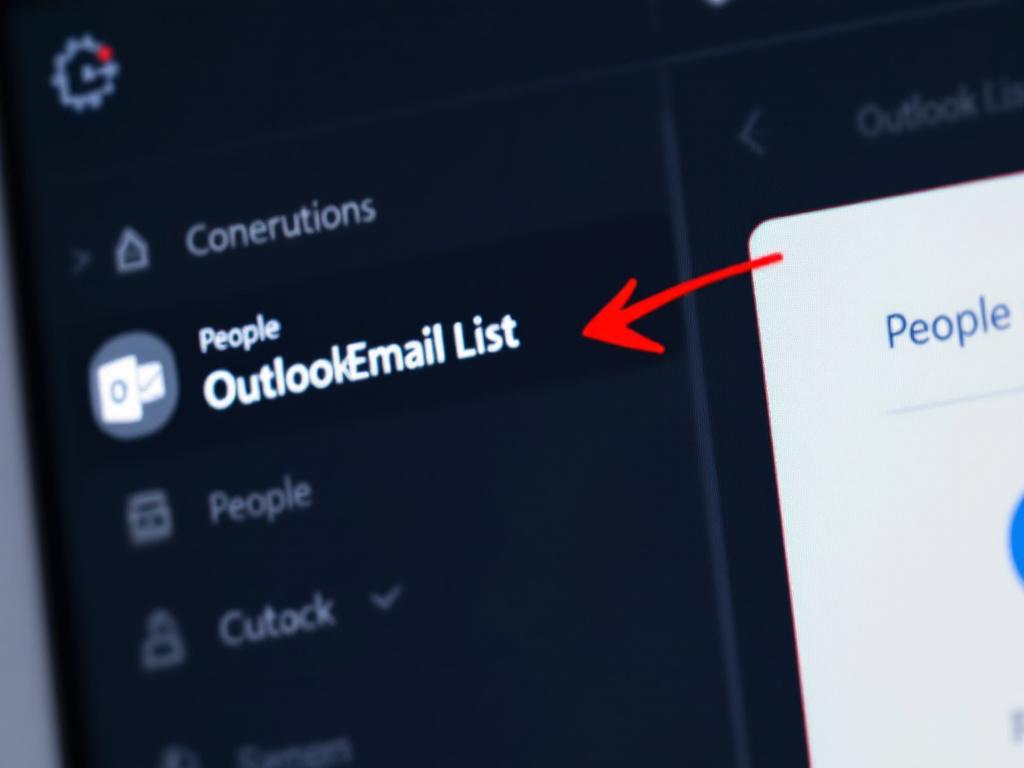
Step 2. Start a new Contact Group. From the Home tab, click New Contact Group. In Outlook 2010 through Outlook 2016 the ribbon path is identical. In some Microsoft 365 builds, the entry point appears under New Items → More Items → Contact Group.
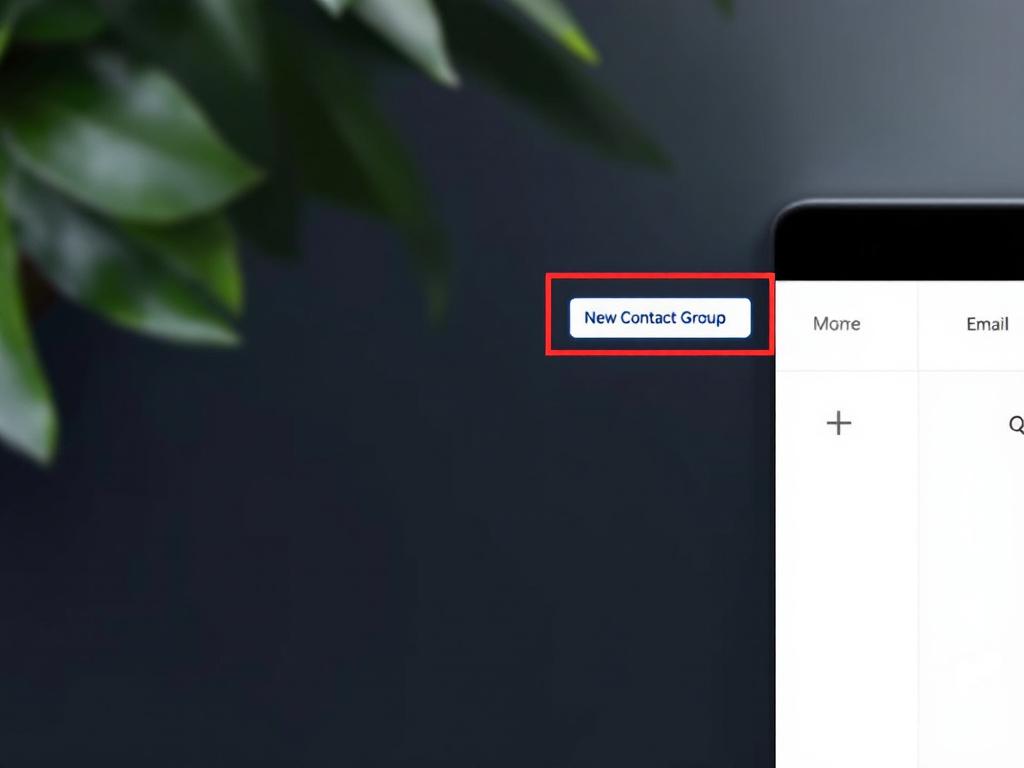
Step 3. Name the group. In the Name field of the dialog, enter a descriptive label that ties the group to its validation cohort — for example, "Q1-2025 Validated Trial Users" or "Newsletter Subscribers (Verified Jan 2025)." Date stamps inside the group name make re-validation cycles trivially easy to identify six months later. A group named "Newsletter" tells you nothing about when its addresses were last checked.
Step 4. Click Add Members. A dropdown appears with three options:
- From Outlook Contacts — pulls from your existing local contacts, which presupposes those contacts were validated upstream.
- From Address Book — pulls from Exchange or Active Directory, typically pre-validated internal users.
- New E-mail Contact — manually adds an address that doesn't already exist as a contact.
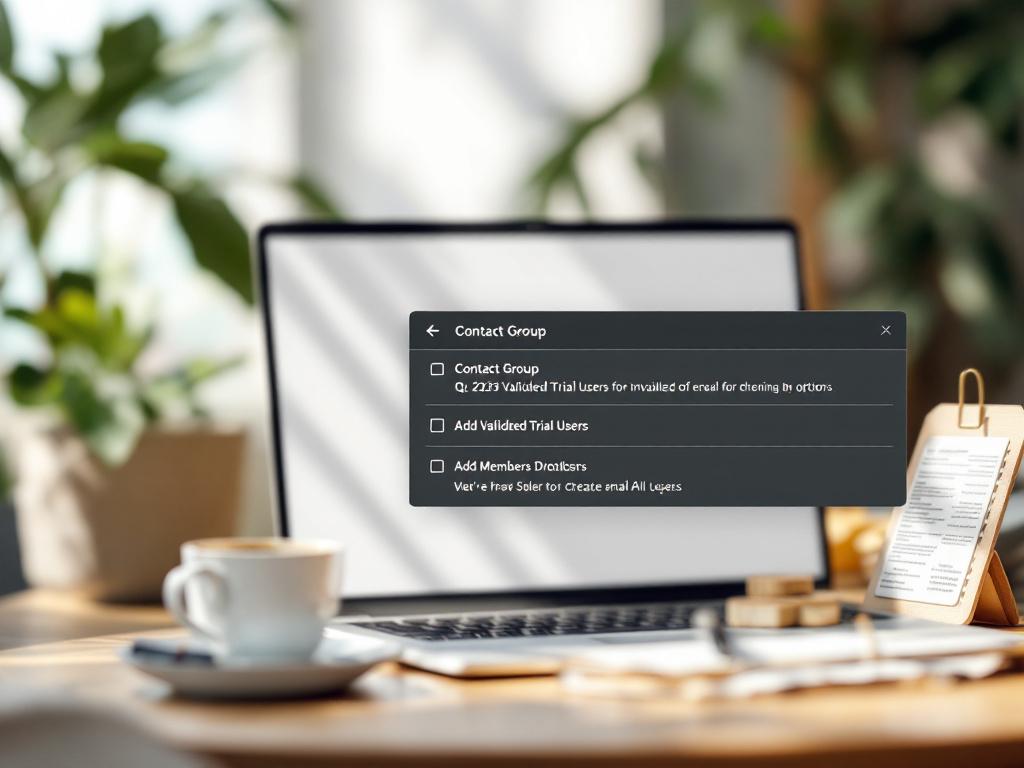
Step 5. Add your validated addresses. For CSV imports, you have two options. You can use New E-mail Contact and paste addresses one at a time, which is fine for small batches. For larger imports, run the CSV through Outlook Contacts first: File → Open & Export → Import/Export → Import from another program or file → Comma Separated Values. Once the addresses live in your Contacts, return to the Contact Group and use "From Outlook Contacts" to select them in bulk.
Step 6. Save & Close. Click Save & Close in the ribbon. The group now appears in your Contacts and becomes selectable as a single recipient in the To, Cc, or Bcc fields of any new message.
Step 7. Send a test message. Before any production send, address one email to the group with the subject "List validation test" and confirm the recipient count matches the expected member count. This step catches malformed entries that Outlook silently dropped during paste — a surprisingly common failure mode when CSVs contain non-printing characters or trailing whitespace.
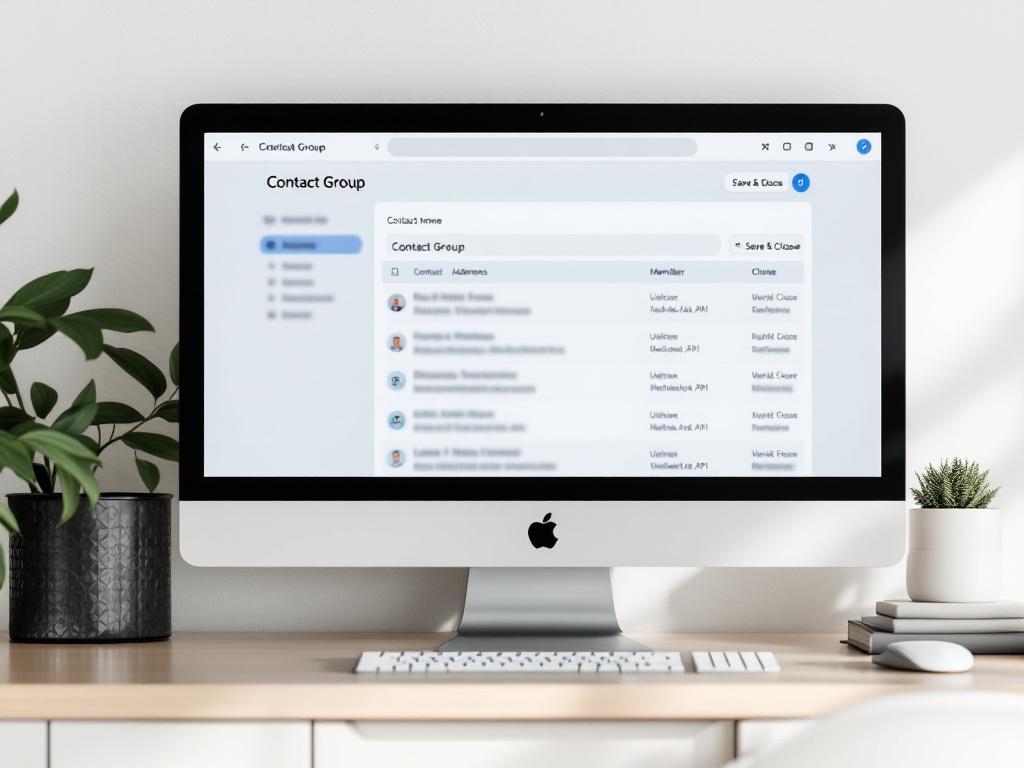
Power-user shortcut. For Outlook 365 keyboard-driven workflows: File → New → Contact Group, then Alt + H, M opens Add Members, followed by C (Contacts), A (Address Book), or E (new Email). The keyboard path is useful for accessibility and for operators building groups at scale. (Source: JFW Groups.io.)
Create a Contact List in Outlook on the Web and New Outlook for Windows
Microsoft has consolidated the new Outlook for Windows and Outlook on the Web around slightly different vocabulary — Contact List instead of Contact Group — and a different navigation pattern from the classic desktop client. The functional result is the same: a named bundle of addresses that you can target with a single recipient field.
The canonical steps (sourced to IONOS and Microsoft's official walkthrough video):
- Click the People icon in the left sidebar of Outlook on the Web or the new Outlook for Windows.
- Locate "Your contact lists" in the left panel. Click New contact list. In some UI builds this appears as a "New" button with a dropdown — choose Contact List, not Contact.
- Name the list using the same cohort + validation-date convention from the desktop workflow.
- Add email addresses by typing or pasting each into the "Add email addresses" field. The interface autocompletes against existing contacts. New addresses can be typed freely — and again, the web client performs no validation on the addresses you enter.
- Click Create. The list now appears under "Your contact lists" and is addressable by name from any new message.
Contact Group vs. Contact List vs. Microsoft 365 Group
The terminology problem trips up a meaningful share of operators. Three concepts overlap, and only two of them are actually mailing lists:
- Contact Group — Outlook Desktop (classic). Stored locally in your Outlook profile or in your Exchange mailbox.
- Contact List — Outlook on the Web and new Outlook for Windows. Stored in the cloud against your Microsoft 365 account.
- Microsoft 365 Group — A different object entirely. M365 Groups are shared workspaces that include a shared mailbox, a shared calendar, a SharePoint site, and Teams integration. They are not a substitute for Contact Groups when the goal is one-way bulk email.
This distinction matters operationally. A user who creates a Microsoft 365 Group thinking they're building a mailing list will end up with a shared inbox they didn't want, and the addresses they add will become group members with full mailbox access — not recipients of a distribution. The Kevin Stratvert tutorial linked above walks through the disambiguation explicitly, which is one reason it's worth watching before your first bulk send.
Five Rules for Keeping Validated Lists Validated
Validation is not a one-time event. The five rules below come from M3AAWG's Sender Best Common Practices, Gmail's Bulk Sender Guidelines, and deliverability research from Validity and Campaign Monitor.
Validate at the form, not after import. Real-time API validation at the signup form catches typos, disposables, and non-existent domains before any address touches your Outlook contacts or your ESP. Chad S. White (Oracle, Email Marketing Rules) notes that confirmed opt-in plus syntax validation "dramatically reduces invalid and mistyped addresses, spam complaints, and other list-quality problems before they ever reach your database". The Outlook Contact Group should be the destination of clean data, never the filter.
Suppress hard bounces after the first event. M3AAWG's guidance is unambiguous: addresses returning 5.1.1 or 5.1.2 status codes should not be retried. Build a workflow that pulls bounce reports from your ESP and removes those addresses from the matching Outlook Contact Group within 24 hours. Re-sending to known-bad addresses is one of the fastest ways to degrade sender reputation, and there is no operational scenario where it produces value.
Re-validate inactive segments every 6–12 months. Deliverability practitioners recommend revalidating addresses that haven't engaged in 6 to 12 months because mailboxes get abandoned, domains expire, and corporate accounts deactivate when employees leave. Export the inactive segment from Outlook, run it through a verification API, and remove the failures before the next campaign goes out. The cost of that revalidation pass is negligible compared to the bounce-rate damage from skipping it.
A Contact Group is only as clean as its oldest unverified import — and most lists rot faster than their owners realize.
Maintain an active disposable-domain blacklist. New temporary email services launch every month. A static blocklist from 2022 will miss roughly half of today's disposable providers. Use a validation API with an actively maintained disposable database that covers tempmail.io, 10minutemail.com, mailinator.com, guerrillamail.com, and the long tail of newer services, and that updates as new providers appear in the wild.
Track Gmail's complaint threshold as a hard SLO. Google's Bulk Sender Guidelines require spam complaint rates "well below 0.1%." If your Outlook-sent campaigns are running at 0.08%, you're operating one bad list import away from a deliverability incident. Wire complaint monitoring into your weekly review cadence, not your quarterly one — by the time a quarterly report surfaces a problem, the damage is multiple campaigns deep.
A counterpoint on the limits of validation
Laura Atkins of Word to the Wise cautions against treating validation as a silver bullet: "Email verification services can remove some bad addresses, but they do not and cannot fix permission problems. If people didn't ask for your mail, no amount of list cleaning will make that mail wanted." Validation solves data quality. Consent — captured through confirmed opt-in and clear sign-up disclosures — is a separate, equally non-negotiable requirement.
Automating Outlook List Hygiene with Validation APIs
A 500-address Contact Group can be validated by hand once. A signup form generating 200 new addresses per day cannot. At any meaningful scale, the only sustainable architecture is API-first validation wired directly into the data-entry surface — the place where addresses become contacts.
Three integration patterns cover most real-world deployments.
Form-side validation. The signup form makes a client-side or server-side call to a validation endpoint before submission completes. Invalid or disposable addresses are rejected with a user-facing error message ("Please use a permanent email address"). This is the cleanest pattern because bad data never enters any downstream system — not the CRM, not Outlook, not the ESP. Trial-abuse fraud, in particular, gets blocked at the front door.
Workflow-triggered validation. Microsoft Power Automate (or Zapier, n8n, Make) listens for new contacts in Outlook or a connected CRM. On creation, the workflow calls the validation API. If the response indicates invalid or disposable, the workflow either deletes the contact or flags it for human review. This pattern is the right answer when you cannot modify the signup form directly — legacy systems, third-party lead-gen tools, partner-submitted lists, and event-registration platforms all fall into this category.
MCP-server agent validation. AI agents using Claude Desktop, Cursor, or other MCP-compatible clients can call a validation MCP server as part of broader automations — an agent processing inbound sales leads, validating each email, and writing only the verified ones to an Outlook Contact Group via the Microsoft Graph API. This pattern is increasingly common for teams building agentic lead-qualification workflows.
A Power Automate flow encoding the second pattern looks roughly like this:
# Power Automate flow: new contact → validate → keep or remove

Trigger: When an item is created in Outlook Contacts
  → HTTP POST to https://verify-email.app/api/v1/verify
       body: { "email": triggerOutputs.EmailAddress }
  → Parse JSON response
  → Condition:
       IF response.is_valid == true
          AND response.is_disposable == false
          AND response.is_blacklisted == false
       THEN: Add contact to "Validated Subscribers" Contact Group
       ELSE: Delete contact AND log to "Rejected Signups" SharePoint list
Manual validation scales to hundreds. Real businesses need workflows that scale to hundreds per hour.

The ROI math closes the case. At volume API pricing, validating 10,000 monthly signups costs roughly $1 to $10 depending on the provider. The downside scenario — sending one campaign to an unvalidated 10,000-address list, hitting an 8% bounce, getting throttled by Gmail and Microsoft, and spending a week rebuilding sender reputation — easily costs four figures in lost revenue plus internal remediation labor. Len Shneyder (formerly Twilio SendGrid) summarizes the upstream/downstream relationship: "Deliverability problems are usually symptoms of upstream data problems — invalid addresses, purchased lists, or a lack of ongoing list hygiene."
The architecture decision isn't whether to validate. It's whether to validate before or after the bounce.
Frequently Asked Questions About Outlook Lists and Validation
Six questions surface repeatedly when teams try to operationalize the workflow above.
Can Outlook's "Clean Up Conversations" feature replace email validation?
No. Clean Up removes redundant messages from a thread — duplicate replies that are already quoted in a later message. It does not touch contact lists, addresses, or list hygiene in any form. There is no native Outlook feature that performs syntax, domain, or mailbox validation. Microsoft's Contact Group documentation describes the feature strictly as organizational.
What happens if I import a CSV with invalid emails into an Outlook Contact Group?
Outlook accepts them without complaint. The invalid addresses sit in the group until the first send attempt, at which point they generate hard bounces — 5.1.1 and 5.1.2 per RFC 3463. Your ESP records every one of those bounces against your sending reputation. Outlook itself never tells you anything is wrong.
Do I need to re-validate addresses I've already verified once?
Yes, for inactive segments. Deliverability practitioners recommend revalidating addresses every 6 to 12 months because mailboxes get abandoned, domains expire, and corporate accounts deactivate when employees leave. Addresses that engage with every campaign can be revalidated far less often — recent engagement is itself a deliverability signal.
Can a third-party validation API integrate directly with Outlook?
Not as a native Outlook add-in in most cases. Integration typically runs through Microsoft Power Automate, Zapier, n8n, or custom code calling the Microsoft Graph API. MCP-compatible servers enable AI-agent-driven workflows in Claude Desktop, Cursor, and other MCP clients, which is increasingly how lead-qualification pipelines connect to contact stores.
Is sending email addresses to a third-party validator GDPR-compliant?
It can be, with the right setup. The UK ICO confirms that email addresses are personal data under GDPR. Validation requires a lawful basis (typically legitimate interests), a Data Processing Agreement with the validator, and data-minimization practices. Do not pipe full lists through unverified validators without contractual safeguards and a documented basis.
Does validation make a purchased list safe to send?
No. Mailchimp's terms explicitly ban purchased lists and state that running them through list-cleaning services does not make them acceptable. Validation solves data quality. Permission and consent are separate, mandatory requirements, and no amount of API spend will manufacture consent that doesn't exist.
Your 4-Week Implementation Roadmap
Use this roadmap to move from whatever state your Outlook lists are in today to a continuously validated pipeline.
Phase 1 — Audit (Week 1)
- Export every existing Outlook Contact Group to CSV. In the Contacts view, select the group, then File → Save As → CSV.
- Run a 100-address sample through a validator. Most providers offer a free tier; verify-email.app provides 50 free API calls with no credit card required.
- Calculate the baseline:
(invalid + disposable) / total × 100%. Document the figure for every group. Lists above 10% invalid are immediate liabilities. - Pull bounce reports from the last three campaigns. Compare measured bounce rate against the 0.7% Campaign Monitor average and the 5% Mailchimp threshold. Anything between 2% and 5% is a warning; anything above 5% is an active incident.
Phase 2 — Source-Side Fix (Weeks 2–3)
- Identify every entry point where emails enter your contact pipeline: web signup forms, lead magnets, CRM imports, manual entry by sales reps, event-registration platforms, partner data feeds.
- Wire a validation API into the highest-volume entry point first. Form-side validation is the priority because it has the lowest engineering cost and the highest data-quality impact.
- Configure rejection rules. At minimum: reject
is_valid: false, rejectis_disposable: true. Optionally reject role accounts like info@ and admin@ depending on your business model — B2B SaaS often tolerates them, consumer marketing rarely should. - Run 10 test signups including 2 deliberate disposables (e.g.,
test@mailinator.com) and confirm the rejections fire correctly with user-facing error messages.
Phase 3 — Cleanup (Week 4)
- Bulk-validate every existing Contact Group's CSV export from Phase 1.
- Remove invalid, disposable, and blacklisted addresses from the source CSV.
- Delete the existing Contact Group in Outlook and re-import the cleaned list under a new name with a date stamp — "Newsletter Subscribers — Verified [Month Year]." The name itself becomes documentation.
- Send a test campaign to the cleaned group. Measure the resulting bounce rate. The target is under 1%. If you land above that, run a second validation pass before any production send.
Phase 4 — Ongoing Hygiene (Month 2 onward)
- Schedule a quarterly job re-validating any segment with 90+ days of inactivity. Calendar it as a recurring task; do not rely on remembering.
- Configure ESP bounce webhooks to remove hard-bounced addresses from the matching Outlook Contact Group within 24 hours. Power Automate handles this well, as do Zapier and n8n for teams without Microsoft 365 admin access.
- Monitor Gmail Postmaster Tools and Microsoft SNDS dashboards weekly. Treat any complaint rate above 0.08% as a leading indicator — not a problem yet, but trending toward one.
- Review API usage monthly. If validation rejection rates climb above 15%, investigate the upstream traffic source. Sudden rejection-rate spikes usually mean a bot problem or a fraud problem appearing upstream of the validator, and the validator is doing its job by surfacing it.
Start Phase 1 this week. If your audit reveals a bounce rate above 2%, skip directly to Phase 3 — your current list is the immediate liability, not your form.